

Introduction
Continuous Integration has become practice to many development project. Did you know, we can achieve that in SQL Server Project in Visual Studio as well!!. Much needed one !!! There is a relatively easy path to get our databases into Database Projects (which we discussed in previous article), and ultimately source control. Implementing proper database code branching in Git or a similar source control can help you speed up database development, testing, refactoring and deployment there by creating a smooth and effective Database Lifecycle Management (DLM) process. In this article, we will discuss How to Link a SQL Server Database Project to a Git Repository.
Link SQL Server Project to a Git Repository
For better understanding, I would recommend to read the previous article before getting into this.
- Open Visual Studio and Navigate to our SQL Server Database Project, which we have already created.
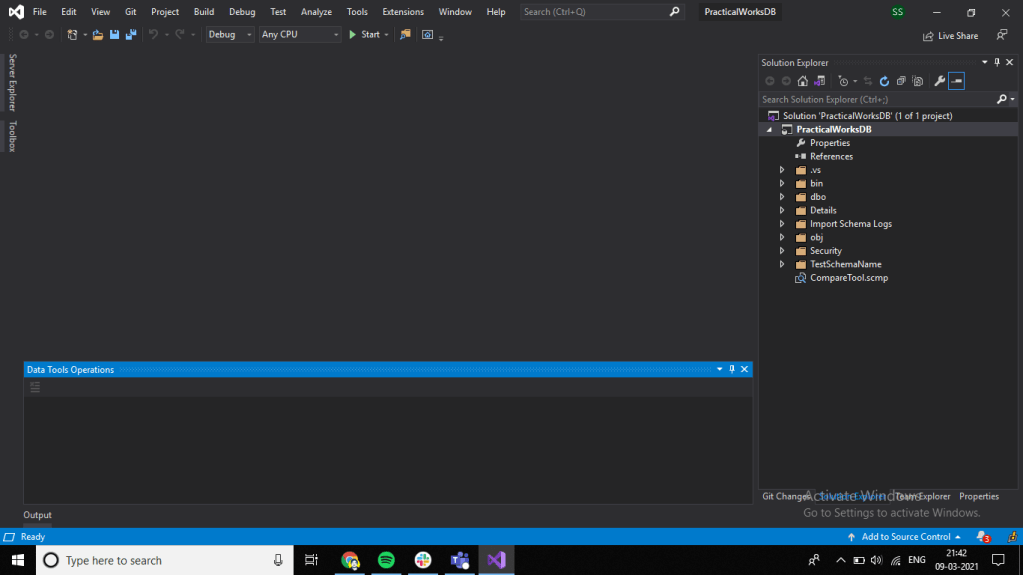
- Click Git menu, Create Repository from the Visual Studio Menu Bar
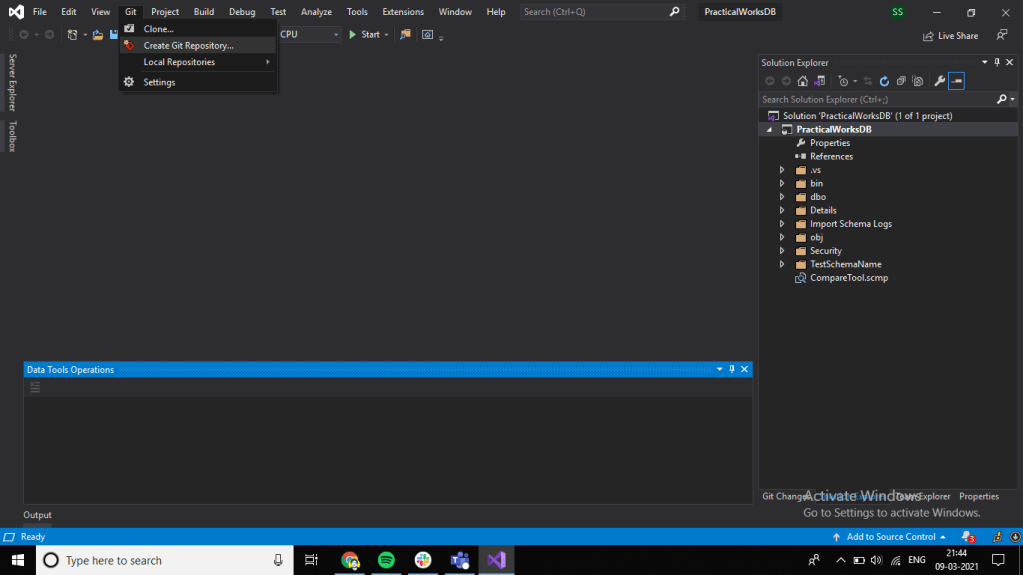
- Or choose Git Changes next to Solution Explorer. Click Create Git Repository.
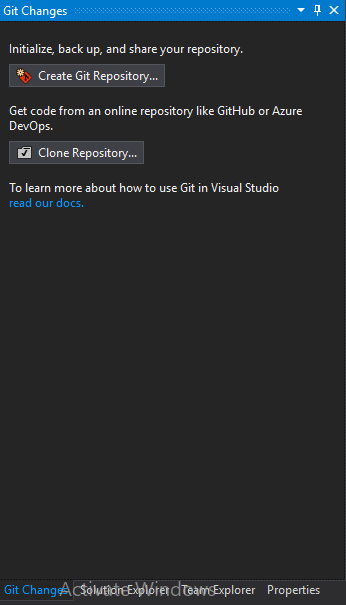
- In this article, I am explaining about the GitHub repository and I have already logged in into the GitHub in Visual Studio. You should also sign in into the GitHub in Visual Studio.
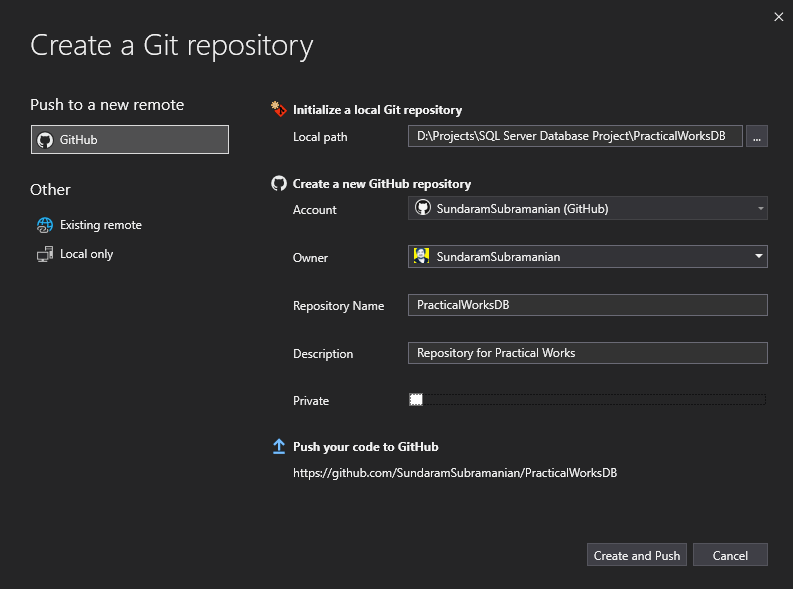
- Once we click Create a Repository from the options, it prompts us to enter the repository details like, Repository Name (By default the SQL Server Project Name will be set), Description about the project and Checkbox to enable if the repository is Private.
- After entering the required fields, Click Create and Push button

- If we navigate to GitHub, we can see our new project there.
- This project’s Git Repo.
Now it will be easy to manage the SQL Objects for a database, when more developers works at the same time and no need to worry about the integration process as well. By using the Schema Compare in Visual Studio we can manage the Newly added objects or modified objects in SQL server Database, which we will discuss in my next article.
Conclusion
In this article, We have discussed, How to link our SQL Server Database Project with GitHub. In my next article, we will discuss how to use Schema Compare Tool in Visual Studio to manage the changes in SQL Server. I hope you all found this article/ tip useful. Please share your feedback in the comment section.
Consider reading other SQL articles of Mine
- Create and Publish SQL Server Database Project With Visual Studio
- Customize Azure Data Studio with Dashboard Widgets
- Cycle Clipboard Ring In SSMS – Reuse Copied Items
- Set custom colors to differentiate between environments in SSMS
- Recover unsaved SQL queries in SSMS
- Multiple Backup Files of the SQL Server database with SSMS and T-SQL
- Difference between CURRENT_TIMESTAMP vs GETDATE() vs SYSDATETIME() vs GETUTCDATE() in SQL Server
- Change Schema Name of Table in MS SQL Server
- Identifying object dependencies in SQL Server using SP_DEPENDS
- Select Names Starting With Vowels in MS SQL Server
- Display Line Numbers in a SQL Server Management Studio Query Window (SSMS)
 Learn With Sundar
Leave a reply to Aggregate Functions in SQL Server – Learn With Sundar Cancel reply